We use cookies and other tracking technologies to improve your browsing experience on our website, to show you personalized content and targeted ads, to analyze our website traffic, and to understand where our visitors are coming from.
⚠️
GDPR & Cookie Policy Notice
In accordance with data protection regulations; the use of mandatory cookies is required for the core functions of our website to operate, ensure data security, and perform analytics. If you reject the use of cookies, it is not possible to benefit from the services on our website due to technical limitations and data synchronization interruptions. You must consent to the use of cookies to access the content on our site.
An Intruder on the Desktop: Virtual Cat and Mouse Chase Application with Python
It all started when my sister showed me a video she was watching while taking a break at work. In the video, there was a cute virtual cat animation following the cursor with smooth focus on the desktop. When she threw out the question, “Can we make this for our computers?”, as a software developer, it was impossible not to roll up my sleeves.
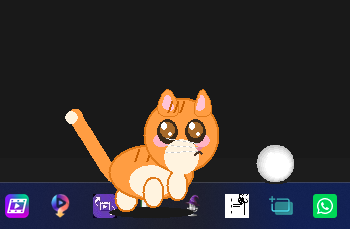
The result is a virtual cat simulation that tirelessly chases a large white ball attached to the tip of your mouse across the screen. It turned out to be a completely open-source and fun project, but it’s worth giving a small warning right from the start: the presence of a digital cat constantly trying to catch your cursor on the screen might make it a bit difficult to focus. Also, a personal note from me: it is strictly not recommended to install and use it on work computers!
Figure 1: The virtual cat chasing the white ball at the tip of the cursor on the desktop.
Update: v2.0.0.0 Is Here 🎉
After sharing the first version, two pieces of feedback kept coming back: “it doesn’t work on my second monitor” and “any chance of getting this in a language other than Turkish?” I listened to both, and v2.0.0.0 is the result:
🖥️ Full Multi-Monitor Support: The cat and ball now follow your cursor across every monitor connected to your system, not just the primary one. Move your mouse to any screen and the pair follows seamlessly.
🌍 Multi-Language Support (English Included): The app itself defaults to Turkish out of the box — that’s the developer’s native language, after all — but full English support ships with every release. Switching the cat over to English takes about ten seconds; I’ll walk through it below.
⚙️ No-Code Settings: Speed, boredom timing, purring frequency, and every other parameter can now be tuned from a plain settings file sitting next to the app — no Python knowledge required.
📦 Customization Survives the Compiled Build: Settings and language files aren’t baked into the .exe; they live in an external settings/ folder that’s read at every launch. That means you can change the language or tweak the behavior of the compiled release without touching Python or recompiling anything.
For English-Speaking Users: How to Switch Languages
When you download and run v2.0.0.0, the cat will greet you in Turkish first, since that’s the default. To switch to English, open the settings/settings.json file that ships next to the executable in any plain text editor, find the line "LANGUAGE": "tr", change it to "LANGUAGE": "en", save, and restart the app. That’s it — no recompiling, no extra downloads. The English text is already bundled in settings/lang/en.json.
Want a language other than Turkish or English? Drop a new JSON file into settings/lang/ (say, de.json for German), following the same structure as tr.json/en.json — a messages section for in-app text and a bubble_texts section for the cat’s 100 idle one-liners — then point LANGUAGE at that file’s name in settings.json. The source code doesn’t need to change at all.
The Logic Behind the Project and the Development Process
Ensuring that a virtual character on the screen reacts to the user’s mouse movements in a real-time and smooth manner was the most enjoyable part of the project. If the cat’s movement consisted solely of teleporting to the coordinates of the mouse, all the naturalness would be lost.
Dynamic Tracking Algorithm
The acceleration, deceleration, and turning angles exhibited by the cat as it runs toward the large white ball at the tip of the mouse are based on a mathematical tracking algorithm. The fact that the cat speeds up when you suddenly pull the mouse away, and slows down to a stop as it approaches the cursor, adds an organic feel to the simulation. I managed to build this smooth movement structure by utilizing Python’s visualization and interface capabilities.
The Multi-Monitor Problem
In v1, the cat and ball were confined to the primary display’s boundaries; move your cursor to a second monitor and the pair would simply vanish. For v2, I added logic that scans the coordinates of every screen attached to the system and repositions the cat and ball onto whichever monitor the cursor is currently on. On Windows this works out of the box; on Linux and macOS, the optional screeninfo library provides the same experience.
The Power of Open Source and the GitHub Family
I shared the code completely open-source so that the project can be developed by anyone, new movement animations can be added to the cat, or the tracked object can be customized. You can access the raw state and architecture of the code directly through the GitHub repository.
You don’t need to set up a Python environment and wrestle with libraries to try the project on your computer. I have prepared compiled versions of the application for those who want to welcome a virtual pet partner directly to their desktop without getting into technical details.
🚀 Direct Download (v2.0.0.0 — Latest, Multi-Monitor & Multi-Language Support):KediTopTakibi.zip
When you download v2.0.0.0, you’ll get a .zip file containing KediTopTakibi.exe alongside a settings/ folder. Just keep that folder in the same location as the .exe — that’s how the app reads its settings and language, no other setup needed. And remember: the app will speak Turkish by default until you flip the switch described above.
(It’s worth reminding you again; if you don’t want your boss or colleagues coming up behind you and seeing a cat chasing a white ball on the screen, keeping this fun for your personal computers at home would be a wiser engineering decision.)
For Developers: What’s Under the Hood?
If you want to get into the kitchen of the work, change the cat’s speed parameters, or integrate another object instead of the white ball, you can start by cloning the Python project. The basic requirements are quite standard:
Optimizations were applied in the project to capture screen coordinates instantly and to draw the cat figure smoothly even at high frame rates (FPS). In order to prevent it from unnecessarily fatiguing the processor (CPU) while running in the background and slowing down your computer to hinder your work, the loop intervals were meticulously optimized.
If you’re running from source, settings and languages live in the same place: settings/settings.json, settings/lang/tr.json, and settings/lang/en.json inside the project folder. You can personalize your own build just by editing those files — no need to touch a single line of Python.
Conclusion
Starting with inspiration from a small video frame, this tiny simulation turned into a sweet project that makes the desktop a bit more fun. With v2.0.0.0, it can now find you no matter which monitor you’re working on, and it can chat with you in your own language too. You can also fork the code to bring new mechanics to the project, and share your experiences with your desktop’s new guest with me via GitHub, LinkedIn, and social media!